Approval Circuits
A guide to using the three approval circuits configured for your project: RFA, RFI and MAR. Same simple mechanics, three distinct intents.
Foreword #
Three approval circuits are configured for your project. They share the same simple mechanics: a document, the people you choose to involve, and a clear record of every response.
This guide is for everyone who will deposit a document, or be asked to give an opinion on one. The three circuits (RFA, RFI and MAR) work the same way at the level of the action. They differ in their purpose, and in who closes them. Read the first three sections once, then return to the rest as a reference.
Three principles to remember #
All three circuits are configured as document-only. These three principles apply across the board.
A title, a file. Nothing else to fill in.
No required codes, no categories, no metadata. You give the document a clear title, attach the file, and select the people you want to involve. That is the entire submission.
Recipients are asked in parallel.
No predefined order, no stages, no first-validator-then-second chain. Every recipient you select receives the document at the same moment, and each is free to answer when ready.
Each recipient answers independently.
One recipient's response does not affect another's. Each person reads, decides, comments and submits on their own. The record keeps the full set of responses side by side.
The three circuits at a glance #
The mechanics are identical across the three. The intent is not. Use the right circuit for the right purpose. Switch tabs below to see each one.
Request For Approval
For any document that requires formal approval
Use an RFA when a document needs to be formally approved by one or more parties before it can be considered final. Typical examples include a method statement, a shop drawing submitted for sign-off, or a procedure that requires the project director's agreement.
Request For Information
For a question that needs an answer in writing
Use an RFI when you need a written clarification, guidance, or confirmation, not an approval. Typical examples include a query about a detail in a drawing, a request for a technical specification, or a question addressed to the design team.
Material Approval Request
For a material submitted for approval
Use a MAR exclusively for material submittals: a product, a finish, an equipment proposed for use on the project, submitted to those who can authorise it. Use a MAR when the question is can we use this material?
Submitting a document #
The same four steps apply whether you are starting an RFA, an RFI or a MAR.
Open the right circuit
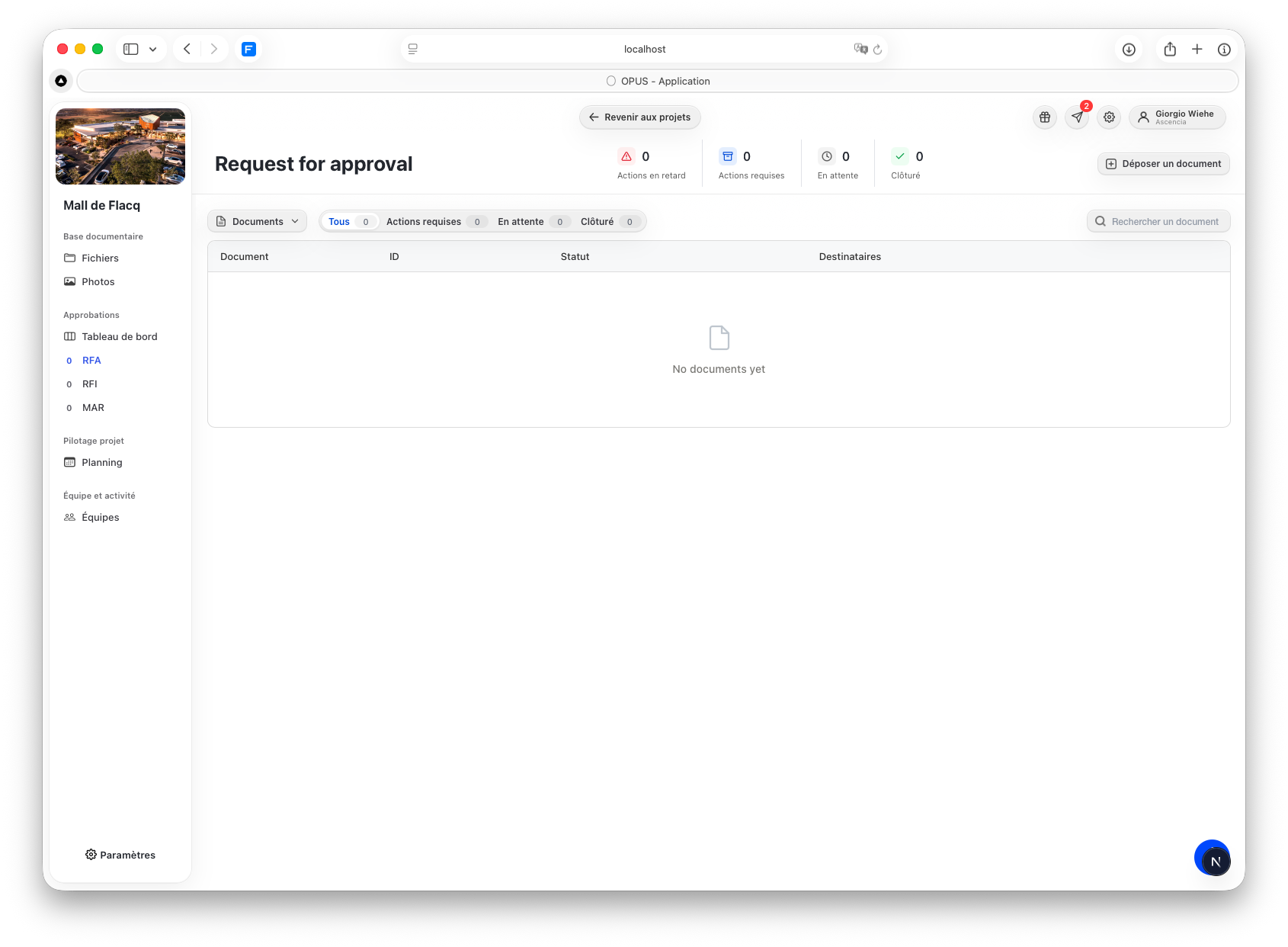
In the project's side navigation, under Approbations, click on the circuit that matches your intent: RFA to request an approval, RFI to ask a question, MAR to submit a material. Refer to the previous section if you are unsure.
Pick the file from your computer
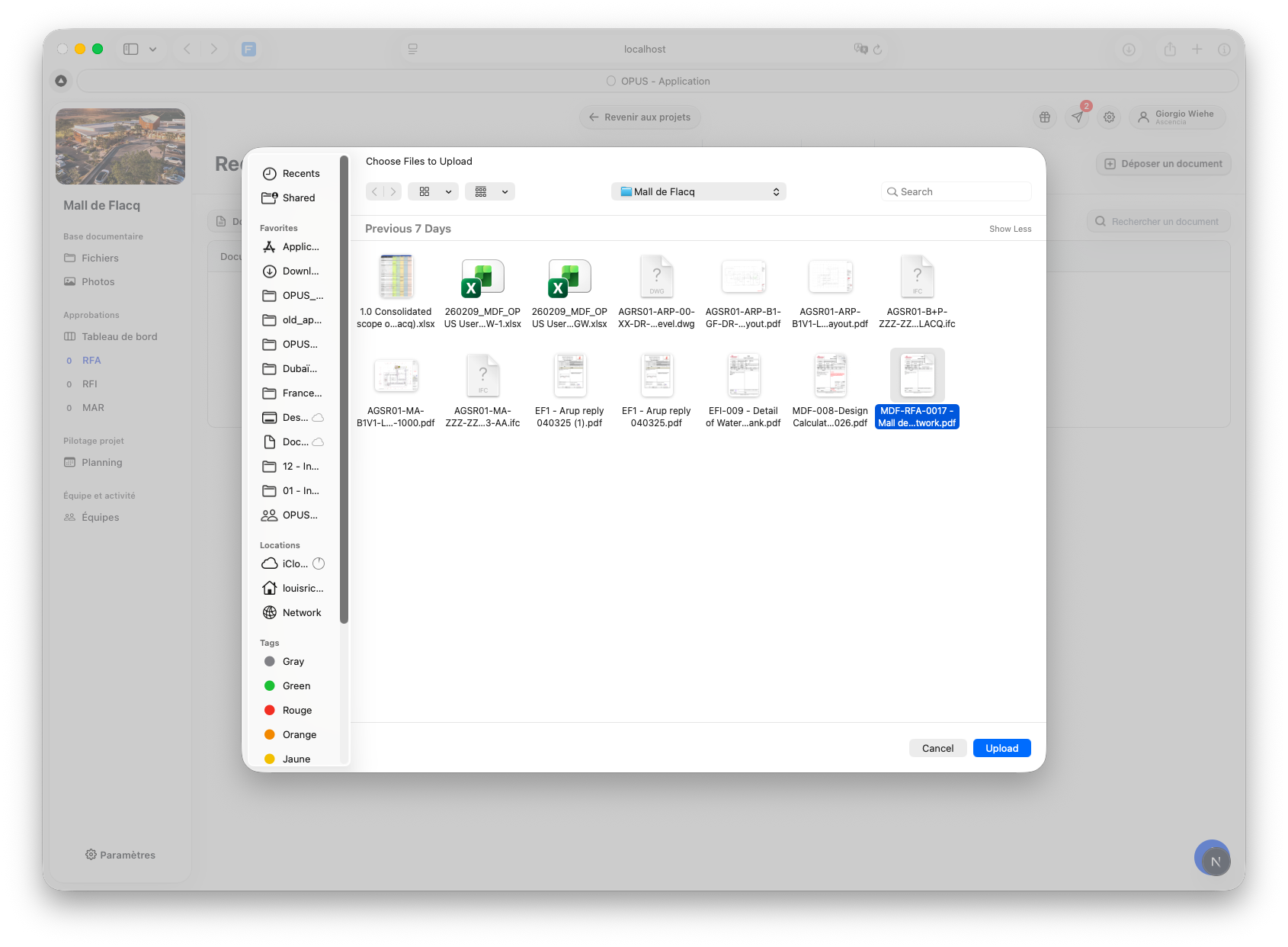
Use the Déposer un document action at the top right of the circuit. Your computer's file browser opens directly; there is no in-app upload panel. Select the document you want to submit and confirm.
Fill in the submission panel
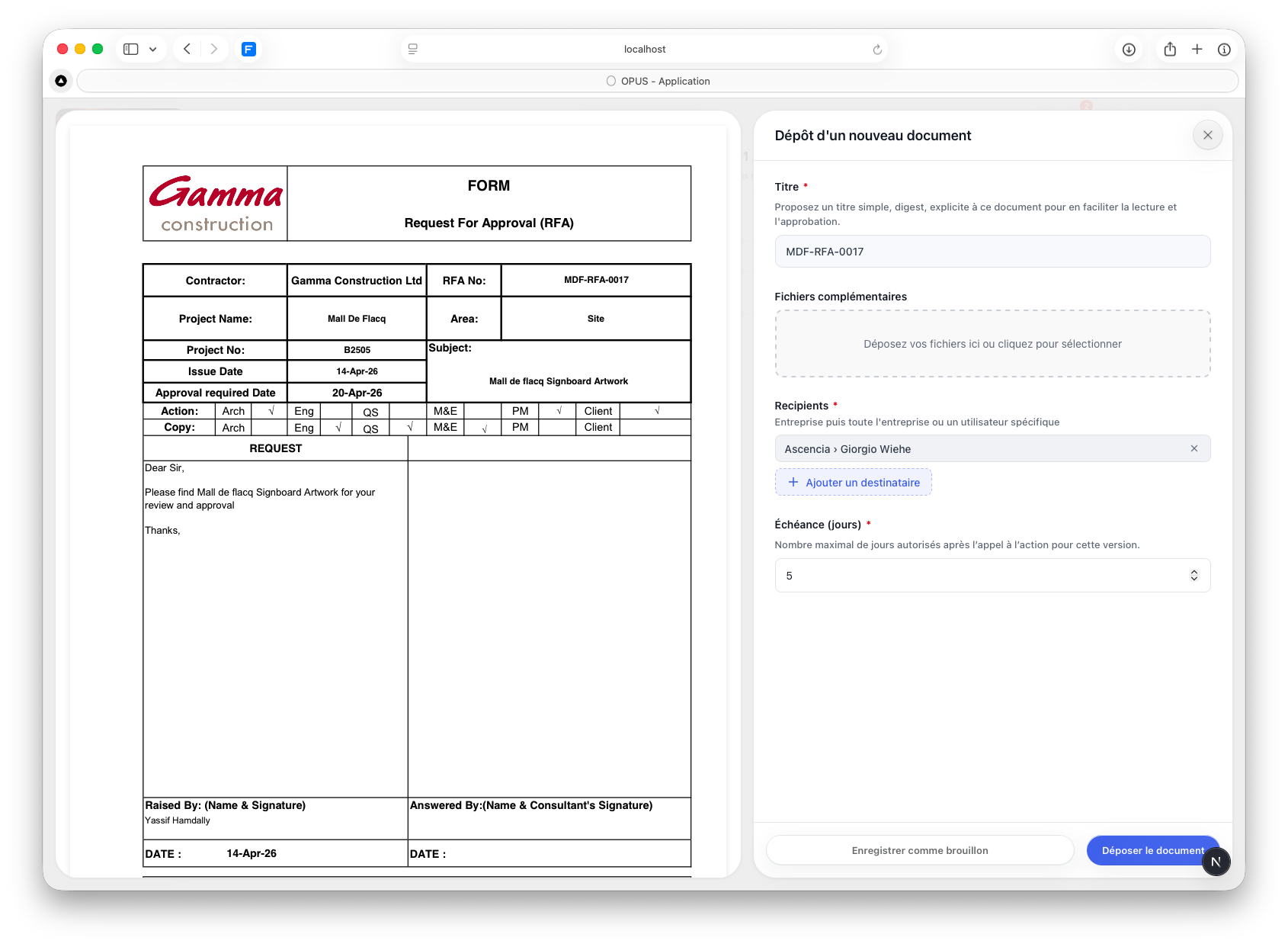
Once your file is selected, a panel opens on the right of the screen with a preview of the document on the left. Four things to set:
- Titre. Pre-filled from the file name. Edit it to make it short, specific, and self-describing. This is the first thing recipients see in their notification.
- Fichiers complémentaires. Optional. Drop in any supporting files (a reference document, a covering note, related drawings). The main document stays the one you picked at the previous step.
- Recipients. Two lists are available: primary recipients (the people whose answer you need) and recipients in copy (people you want to keep informed without asking them to respond). Recipients are grouped by company (for example Ascencia › Giorgio Wiehe). Use Ajouter un destinataire to add more. Everyone is notified at the same time, primary recipients each answer independently, with no order to set.
- Échéance (jours). The maximum number of days a primary recipient has to respond after being notified. Defaults to 5. Adjust if your context requires a tighter or longer window.
Tip. A good title is short and self-describing. "Foundations, shop drawing rev. C" tells the recipient at a glance what they are about to open.
A recipient who is not a member of the project cannot be added here. If someone is missing from the list, contact your project administrator.
Submit
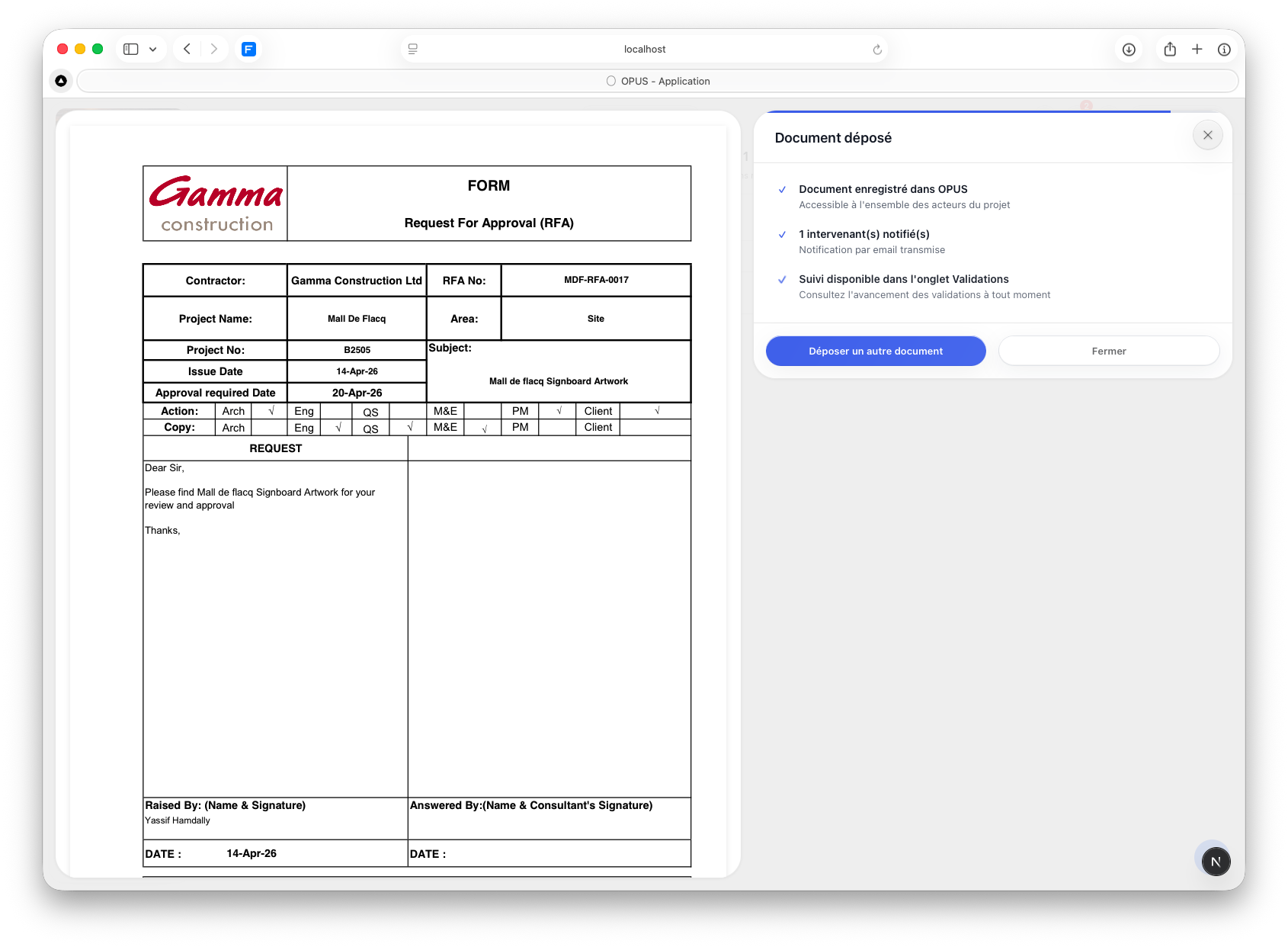
Confirm. The document appears in the circuit's list with responses pending. You will be notified each time a recipient responds.
Responding to a document #
When you are selected as a recipient, you receive an email notification, and the document appears in the relevant circuit when you open the project.
Open the document
Either follow the link in the notification email, or open the project's Approvals section and click on the document in the relevant circuit. The document opens in a full-screen view: the file on the left, the response panel on the right, and the timeline of approvers below.
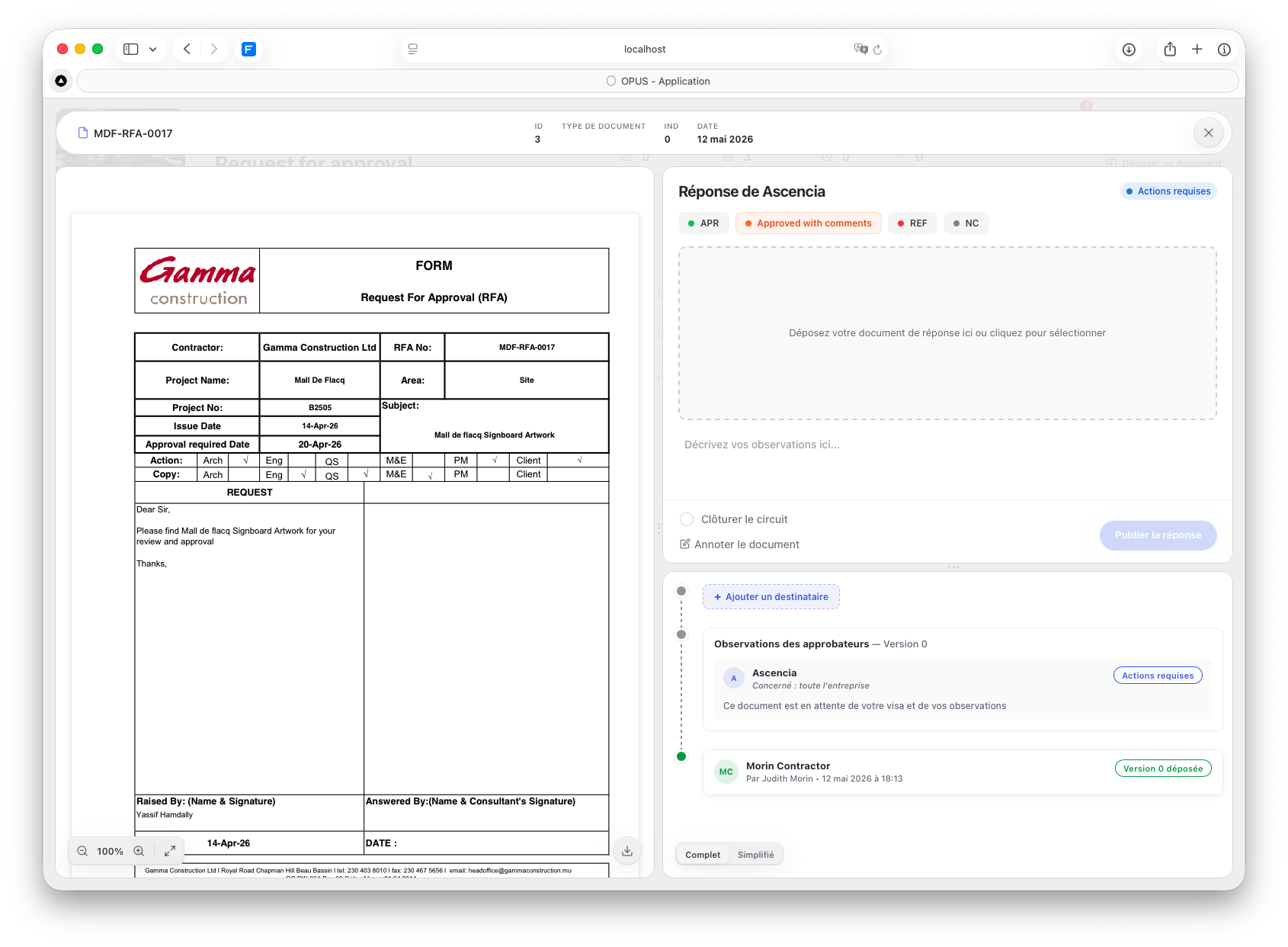
Review the file
The file is shown on the left side of the screen. Scroll, zoom, or download it as needed.
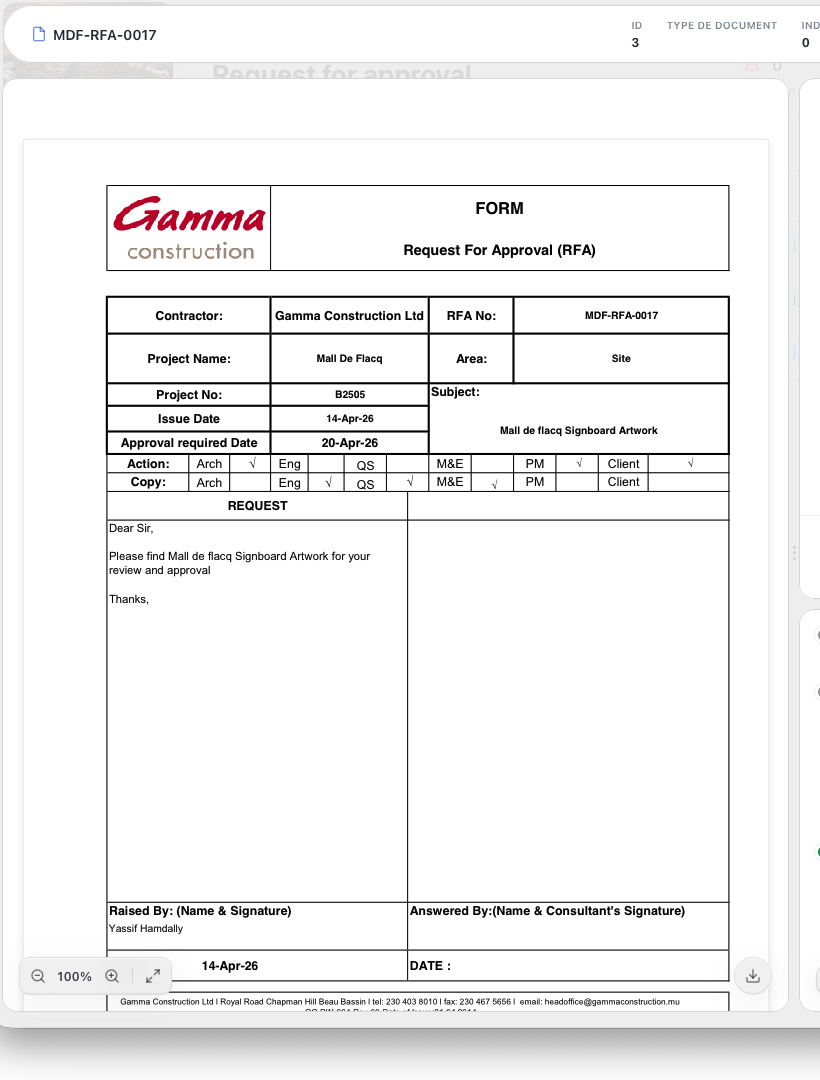
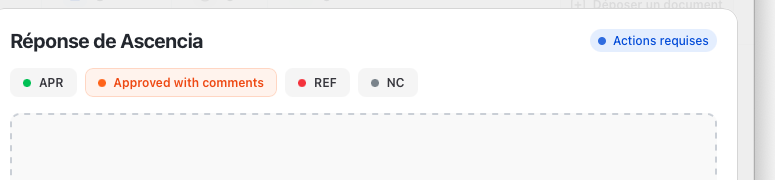
Choose your response
Four responses are available at the top of the response panel:
- APR (Approved). You give your agreement, no reservation.
- Approved with comments. You give your agreement, subject to the comments you attach below.
- REF (Refused). You do not agree. The document needs to be reworked or withdrawn.
- NC (Non Conforme). The document does not conform and needs revisions before you can decide.
Your response is yours alone. It does not commit the other recipients, and theirs does not commit you.
Attach a response document and observations, if useful
Three ways to support your response, all optional:
- Drop a response document into the dashed zone (a counter-proposal, a stamped return, a revised file).
- Type your observations in the Décrivez vos observations ici… field (a comment, a precision, a justification).
- Use Annoter le document to mark up the original file directly (highlights, redlines, sticky notes).
Anything you attach is visible to everyone with access to the document.
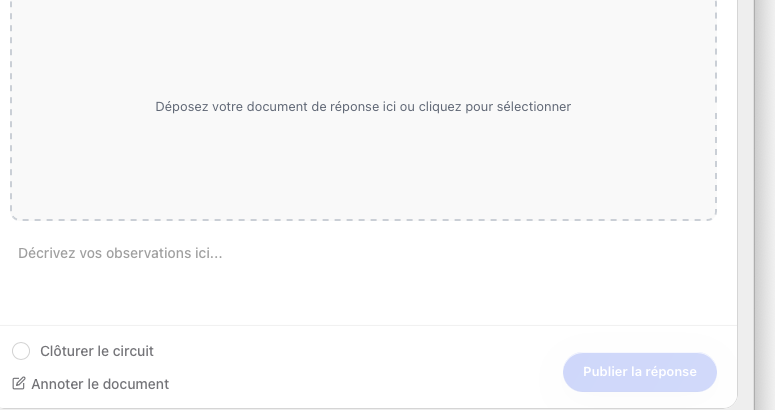
Submit
Click Publier la réponse at the bottom of the panel. The submitter and the other recipients can now see your response in the document's record. If your response settles the matter, tick Clôturer le circuit before publishing to close the circuit in the same action.

Automatic reminders #
If you have not submitted a response after a certain delay, the system sends you an email reminder. Circuits keep moving without manual chasing.
Closing a circuit #
A document stays open until it is explicitly closed. Closing signals that the matter has been resolved and that no further responses are expected. The rule for who closes depends on the circuit.
Closed by a recipient
The approval has been given (or denied), so the matter is settled. Any one of the recipients can close the circuit. In practice, the recipient whose answer is decisive is the one who closes it.
Closed by the submitter
You asked the question. You are the one who decides whether the answer is sufficient. Once you have what you need, you close the circuit yourself.
Closed by a recipient
The material is approved, or it is not. As with the RFA, a recipient closes the circuit once the decision is final.
How to close #
Open the document. In the response panel, tick Clôturer le circuit and click Publier la réponse. The document becomes read-only; every response is preserved and remains consultable.

Reversible. A circuit closed in error can be reopened from the same panel.
Following a circuit's status #
Every document carries a record of what has happened to it. Opening a document gives you, on the same screen, the file and a panel that summarises every response received so far.
For each recipient you see: their name, the date of their response, the response they gave (approved, rejected, new version requested), and any observation or attachment they added.
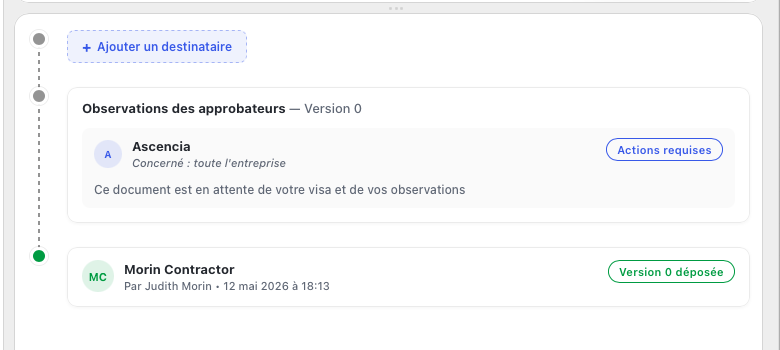
Issuing a new version #
If a recipient has requested a new version, upload an updated file from the same document screen. Earlier versions remain available in the record; primary recipients are re-asked to respond on the new version.

Quick reference #
The same information, in one table, for when you do not have the time to read the rest.
| Circuit | Full name | Use for | Closed by |
|---|---|---|---|
| RFA | Request For Approval | A document that needs formal approval | A recipient |
| RFI | Request For Information | A written question that needs an answer | The submitter |
| MAR | Material Approval Request | A material submitted for approval | A recipient |
Universal rules #
- Submit with a clear title and the file. No other field is required.
- Recipients are chosen by the submitter at the moment of submission.
- All recipients are notified at the same time, in parallel.
- Each recipient answers independently. One response does not bind the others.
- The available responses are: Approve, Reject, Request a new version.
- Observations and attached files can be added to any response.
- A circuit stays open until it is explicitly closed by the right person.
Was this page helpful?